How to Set Up a cPanel Email Account With Outlook 2019

You can set up a cPanel email account with Microsoft Outlook 2019 and manage your email account.


1. Open Outlook 2019.

Outlook-2019-icon.gif


2. Go to File > Info and click on Add Account.
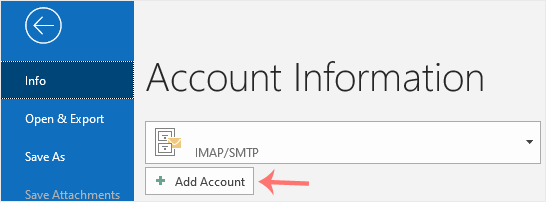
Outlook-2019-add-account.gif


3. Enter your full email address, such as yourname@example.com, and click Connect.
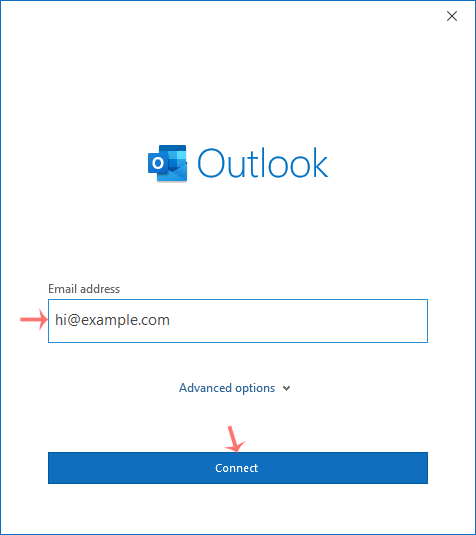
Outlook-add-new-email.gif


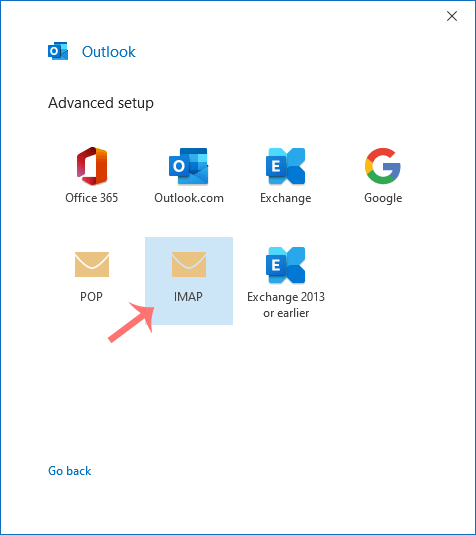
4. In Advance Setup, select IMAP.

Outlook-Advance-setup-choose-IMAP.gif


5. Enter IMAP details as provided below the screenshot but change the hostname to your server hostname and make sure that your IMAP port is correct.
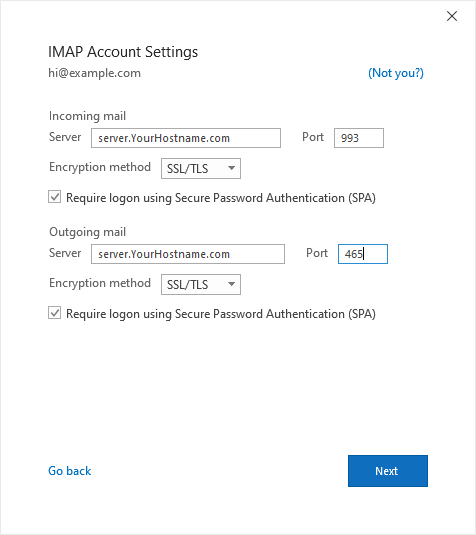
Outlook-IMAP-setting.gif


6. Enter your email password and click Connect.
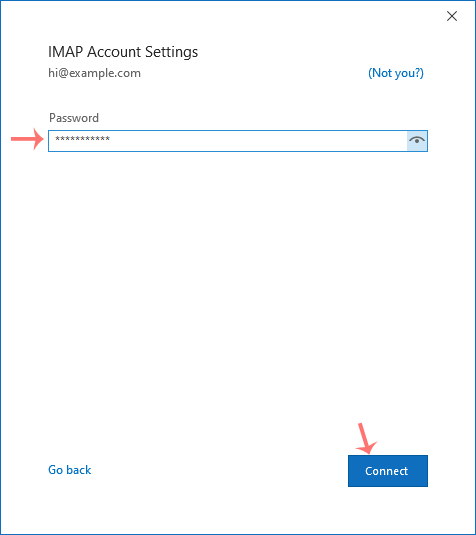
Outlook-enter-password.gif


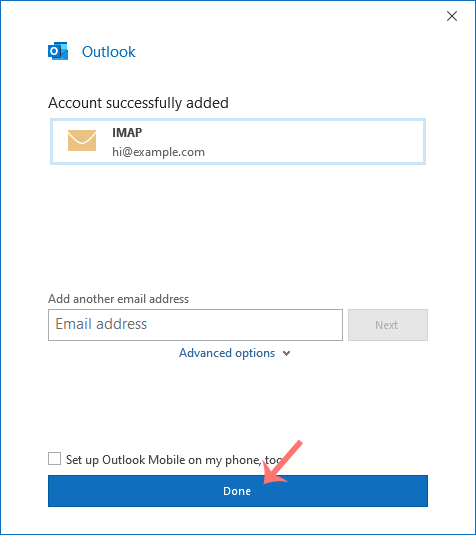
7. Finally, click on Done.

Outlook-IMAP-Final.gif


You can now manage your newly-added email from the left sidebar under the Home tab of Outlook.
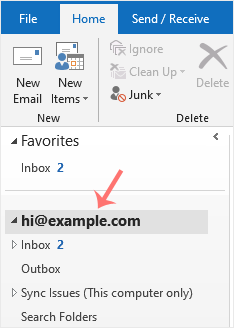
Outlook-mail-left-sidebar-access.gif

  • 0 Uživatelům pomohlo
Byla tato odpověď nápomocná?

Související články

How to Create an Email Account in cPanel

To create a new email address, perform the following steps: 1. Log in to your cPanel account....

How to Create an Email Autoresponder When You Are on Vacation

If you are on holiday or you will be unavailable for a few days or a month, you can create an...

How to Access Email from cPanel Webmail

You can access your Email account directly from Webmail.1. Open http://example.com/webmail,...

How to Forward an Email to Gmail or Other Email Service Providers

How to forward an email? 1. Log in to your cPanel account. 2. In the Email section, click on...

How to Change an Email Account's Password in cPanel

You can change your email account's password through the following steps: 1. Log in to your...